

Reserva Directa: Registro de Nuevo Estudiante
Timely Booking es la mejor solución para escuelas en línea con estudiantes y profesores de todo el mundo. Conecta automáticamente a tus profesores y estudiantes, y permite que tus clientes reserven clases las 24 horas del día, los 7 días de la semana, desde cualquier parte del mundo, sin llamadas ni correos.
Tus tutores accederán a su propio calendario personalizado y podrán ver qué estudiantes tienen cada día, lo que permite incluso que los estudiantes reserven clases con poca antelación si hay tutores disponibles.
¿Cómo pueden contactarte los estudiantes?
Una vez que te registres como Administrador del Sitio en nuestro sitio web, completarás tu perfil y crearás tu propio enlace de calendario que podrás compartir desde tu sitio.
Para crear este enlace:
- Menu: Setup->Your Profile
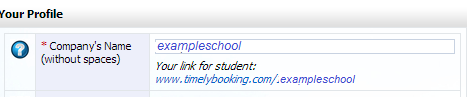
- The first gap to fill is the company's name. The name you include here will be the name that will be included in your link:
- Haga clic aquí
Puedes compartir este enlace con tus estudiantes publicándolo en tu sitio web como un enlace directo para que accedan fácilmente a tu calendario.
Cuando sigan el enlace, accederán al formulario de registro para registrarse como nuevos estudiantes en tu escuela. Este es el formulario de registro que deben completar:
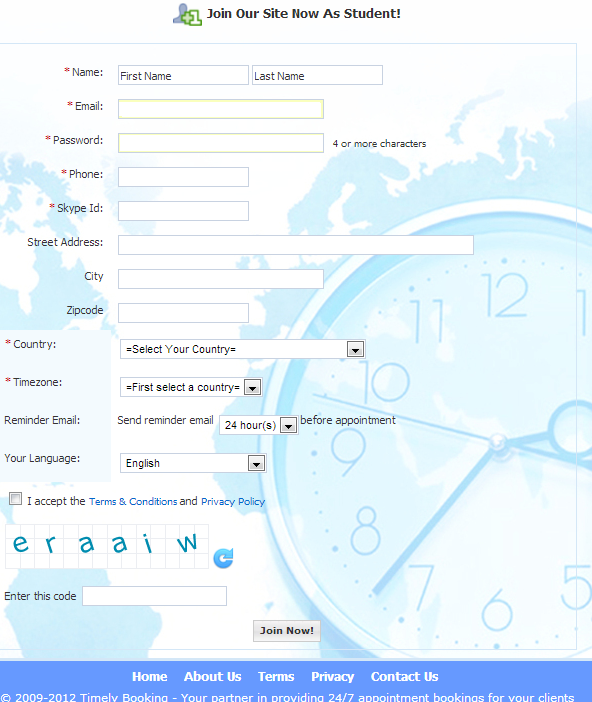
Después de completar el formulario, recibirás una notificación por correo electrónico confirmando el nuevo registro del estudiante. El estudiante, tras verificar su cuenta de correo electrónico, podrá acceder al calendario y reservar una clase de prueba gratuita (si ofreces una) y comprar más créditos.
Administra todos tus correos electrónicos desde tu calendario.
Con Timely Booking puedes administrar todos los mensajes que se envían automáticamente a tus estudiantes. Puedes editar los mensajes, cambiar el estilo y la configuración, y los mensajes se enviarán automáticamente.
- Verificación de registro. This message is sent after a new student registers in your Timely Booking calendar. The student will receive the message in their email account, with a link to verify their e-mail address. You can change the text to personalize your message, and your Admin name and logo will be included in the message automatically, as well as the student's name (according to the name submitted in the registration).
- Mensaje con información de inicio de sesión. Después de que tus estudiantes se registren y verifiquen su correo, recibirán un nuevo correo con su información de inicio de sesión. Este mensaje también se envía automáticamente.
- Recordatorio por correo electrónico. When your students register, they need to complete certain information, including when they want to receive an email reminder before the class. They can choose to receive it from 1 to 30 hours in advance. This message will remind the student of the class they have, with the information of the teacher, time of the class and teacher's contact information. Email reminders are a good opportunity to share information with your students so you can constantly update it.
- Verificación de registro (para tutores). Similar a la verificación de registro que reciben los nuevos estudiantes, este mensaje es el correo de verificación que reciben los nuevos tutores para verificar su cuenta.
Gestionar precios, cursos y pagos
Timely Booking also offers a booking system, combined with a system that organizes all your transactions, receiving payments for classes, adding credits to your student's accounts automatically once payment is received, with payment reports for your tutors.
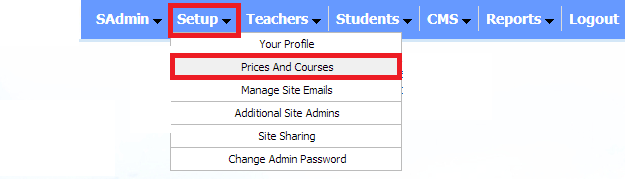
Ir al menú: Setup->Prices and Courses
-
Cursos
Create a new course, for example: "standard lesson" and adjust class duration. Once the course is created, you can set the price. -
Precios
Crea una nueva nota, y verás el nuevo curso que creaste anteriormente en la sección de cursos. Puedes seleccionar y establecer diferentes precios, dependiendo del paquete comprado por el estudiante. Por ejemplo, si el paquete incluye una sola clase, el precio es de $10. Si el estudiante compra 10 clases, puedes querer reducir el precio por clase, por ejemplo, a $7. -
Tutores
When setting price, it is important to remember how much you will pay the teacher. Take a look at the "Teachers' prices" section. The procedure is similar to what we have already seen. Create a new note, select the type of course, and, for each course type, set the teacher's payment amount. -
Código promocional
Suppose you want to give students a special discount. Create a new course in "Manage courses", set its name, duration and add a promotional code name. Then go to "Manage prices", select the course and set the number of classes and the cost to the student for this promotional package. The student, upon entering the credit purchase section, will be able to enter the promo code in the space provided.

Profesores y Reservas
Así es como usted, como administrador de la escuela, ve las clases que se están llevando a cabo cada minuto. Lo que ve aquí es el calendario diario que muestra todas las clases del día. Tiene diferentes colores para identificar el estado de una clase: verde es un espacio disponible que aún no ha sido reservado, amarillo es una clase que tendrá lugar en el futuro, azul claro es una clase pasada, rojo es una clase que se está llevando a cabo en este momento exacto, y gris es el color para espacios bloqueados.
A la izquierda puede ver los calendarios mensuales, y puede pararse en cualquier día del año para ver las reservas que se han realizado hasta ahora.
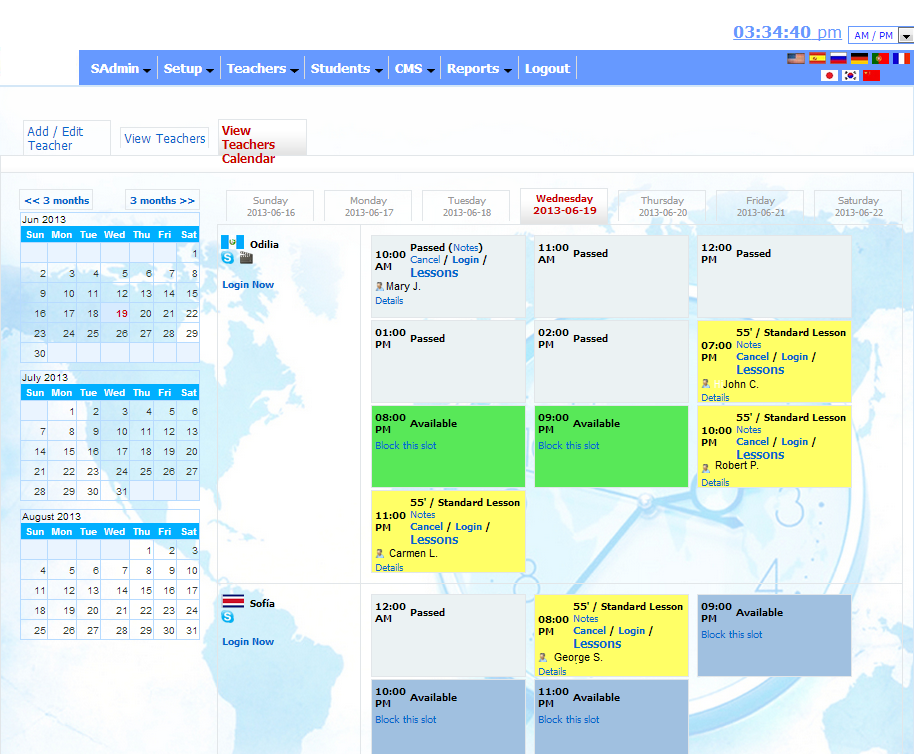
As an administrator, you can access many different features to control what is going on at your school. You can login to a tutor's account (under the name of the tutor click on "login now" in case you need to add a slot, or block an hour, or change a detail in their profiles), you can block a slot from any tutor's calendar (look at the green slots, and the words in blue "block this slot"), you can add a note (next to the time of the class in the slot) for instance saying important information about the student, the type of class, or any other comment you would like the tutor to read, you can check the student's class record by clicking on the word LESSONS in the class slot, and many more.
Ir al menú: Teachers -> Manage teachers
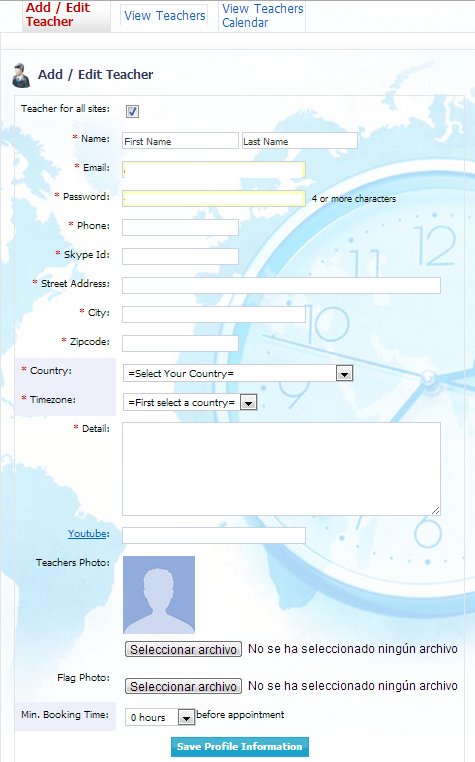
After creating the tutor, ask the tutor to login to http://www.timelybooking.com with their email account and password, and complete their availability in the calendar. You can also complete it yourself by accessing the tutors' accounts (see below).
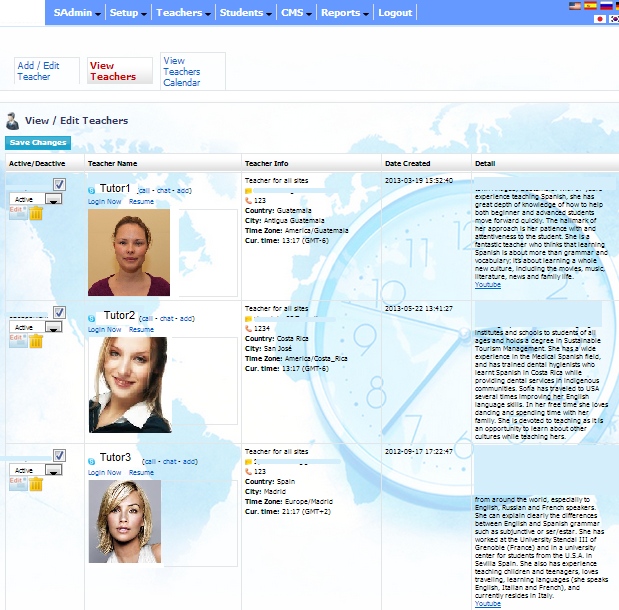
Ir al menú: Teachers -> View teachers
Here you can edit the tutors' profile, login to their accounts by clicking on "login now" below each tutor's name, and view the students' feedback requested after every class, by clicking on "Resume".
CORREOS MÚLTIPLES
With Timely Booking you can send messages to all your students at the same time. The new feature "multiple mailing" allows you to communicate with your customers with only one click, and they will receive the message by email automatically.
Ir al menú: Students -> Multiple mailing

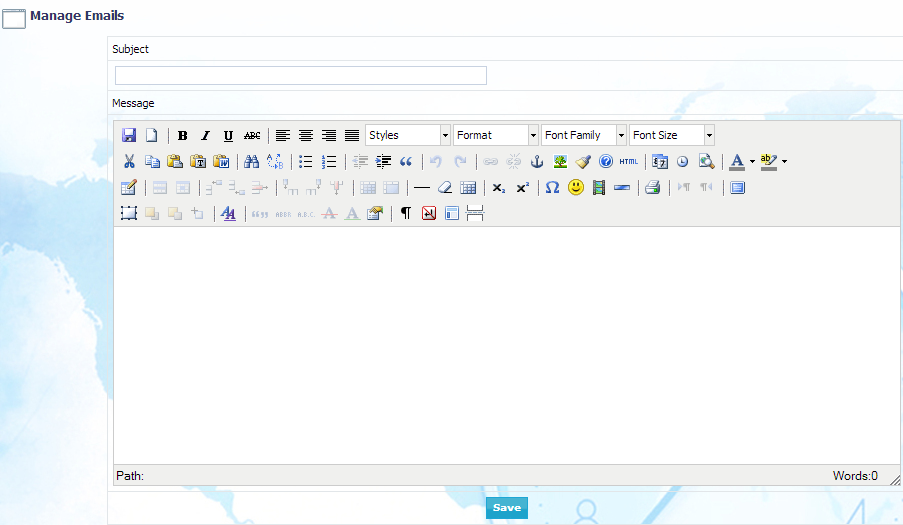
Once you enter the "multiple mailing" section, you will see this:
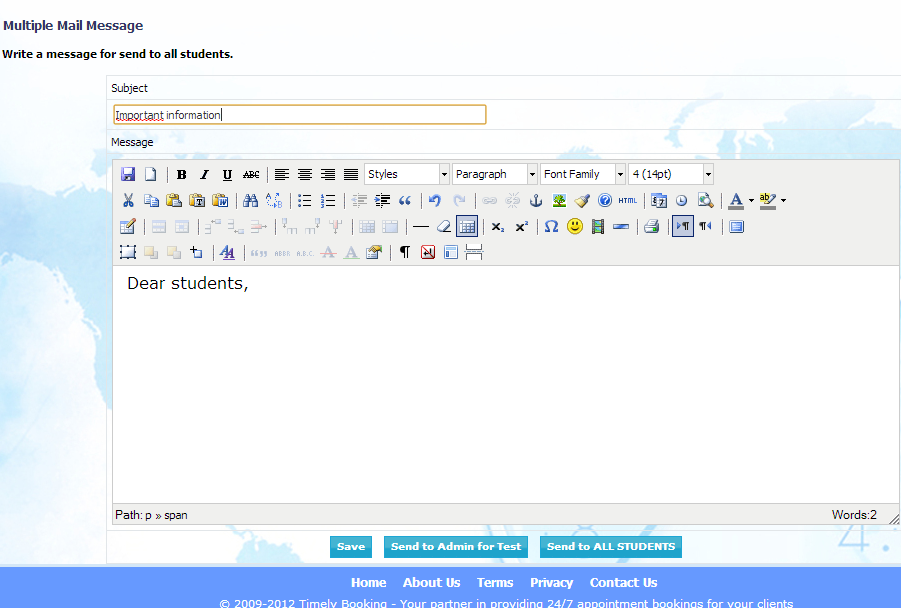
Include an attractive subject and write your message in the text box. You can also personalize your message with varied features and you can embed pictures, links and change the style, size and color of your message. After writing the text, click on "save" and then, send it to all students.